How to use Sundog with Logic Pro
You will need a "virtual MIDI cable" to connect Sundog to Logic.
Please follow the guide here: https://feelyoursound.com/setup-midi-macos/
Basically you set the MIDI Out of Sundog to the virtual MIDI cable, and the MIDI In of Logic to the virtual MIDI cable as well (check the preferences in both programs).
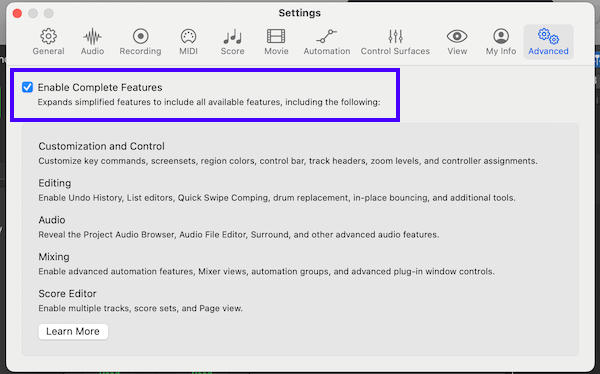
First, click on "Logic Pro -> Settings -> Advanced...". Activate "Enable Complete Features".
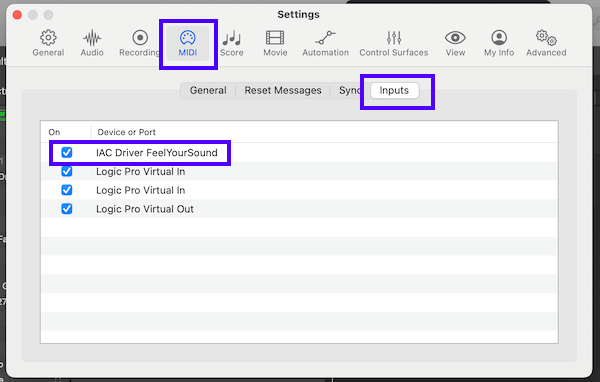
Now click on the "MIDI" tab to open the MIDI settings. Activate the virtual MIDI cable in the "MIDI Input" settings.
Then you have to "arm" the tracks of Logic. Please take a look at this image:
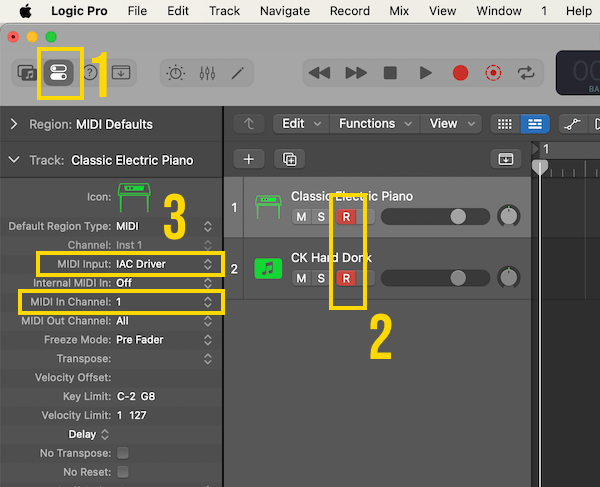
Box 1: Activate this icon to see the "Track" settings etc.
Box 2: Activate the red record buttons of all tracks that should receive MIDI data from Sundog.
Box 3: Set each track to a different MIDI channel.
Important: I highly recommend to set all instrument numbers inside Sundog to "Off" if you work with synth plug-ins! This way the plug-ins will always stay on the preset that you chose inside the DAW and not change their sounds from time to time.
Take care of MIDI feedback loops

Please make sure that you don't create a nasty feedback loop with your MIDI connections. Logic should not send MIDI notes back to Sundog! Otherwise it might happen that these notes will trigger Sundog to instantly send new notes to Logic as well, and the whole circle starts again.
How to use an external MIDI keyboard

If you want to use an external MIDI keyboard with your setup you should keep these things in mind:
1) Set Sundog's MIDI In to your external MIDI keyboard
2) Don't use your external MIDI keyboard as an input device in Logic
Reason: If you use the keyboard in both Sundog and your DAW you will get multiple MIDI note events in your DAW as soon as you press a key. One time from the keyboard itself, the other time when Sundog sends its notes.
I hope this small guide was useful! If you have further questions (or found an error) you can contact me here.